

Last update April 3, 2026
Overview
Amazon Seller Central allows sellers to export various types of business data in CSV format, providing a structured way to access and analyze information about their operations. These exports serve as a key resource for managing large amounts of data efficiently and making informed business decisions.
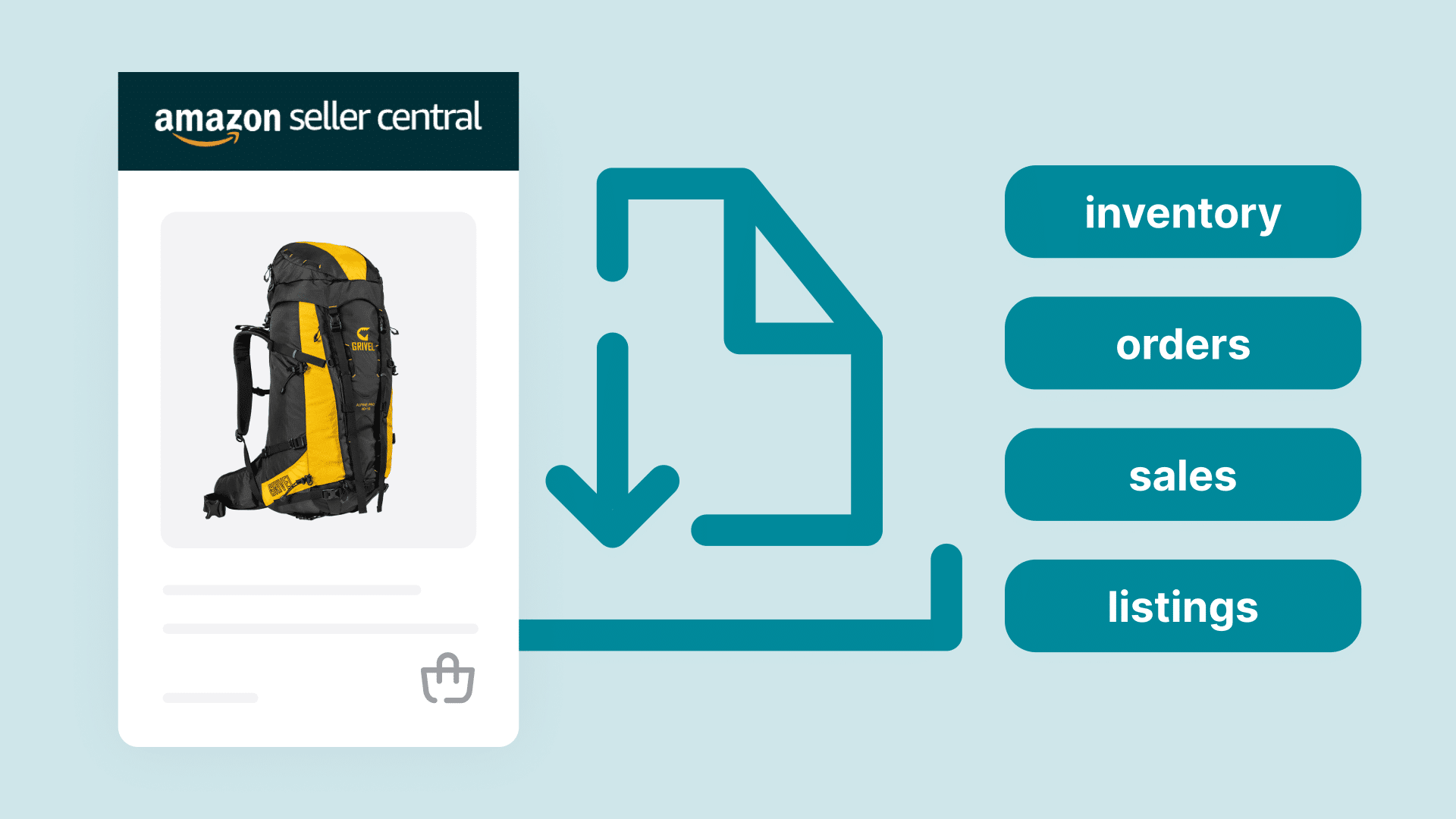
Through CSV files, sellers can obtain structured datasets covering multiple aspects of their business, including sales, orders, inventory, financial transactions, and product listings. By offering these exports, Amazon enables sellers to streamline reporting, monitor performance, and integrate their data with external tools or software.
CSV export is an essential feature for sellers who need to work with large volumes of information while maintaining accuracy and flexibility in their business operations.
How to get a CSV file from Amazon
Amazon Seller Central allows sellers to export CSV files for various aspects of their business directly from the platform. The process is generally consistent across different report types:
- Log in to your Amazon Seller Central account.
- Navigate to the Reports section. The exact location depends on the type of report you want.
- Choose the report you wish to generate and select the desired date range or parameters.
- Download it in CSV format.

Business Reports
Business Reports in Amazon Seller Central give sellers a detailed view of sales and traffic performance. This feature is available to sellers with a Professional selling plan and provides access to various reports that can help analyze performance over time. The reports are generally available for up to two years of historical data.
The main types of Business Reports include:
- Sales Dashboard – a high-level view of sales performance.
- Business Reports by Date – detailed metrics for specific date ranges.
- Business Reports by ASIN and Other – granular data for individual products or product categories.

Business Reports can be customized to display only the metrics relevant to your business. On the right navigation bar, you can select or deselect the metrics you want to include in your report. If the navigation bar is hidden, you can reveal it by clicking the SHOW/HIDE COLUMNS tab on the far right of the page.
To download a Business Report as a CSV:
- Log in to your Amazon Seller Central account.
- Go to Reports > Business Reports.
- Select the report type you need.
- Set the date range for the report.
- Click Apply to generate the report.
- Click Download CSV to export the data for offline use.
Fulfillment
Fulfillment Reports provide data related to inventory and orders handled through Fulfillment by Amazon (FBA). These reports help sellers monitor stock stored in Amazon fulfillment centers, track shipped items, and review operational details related to Amazon-managed logistics.
Typical data available in Fulfillment Reports includes inventory levels, shipments, removals, and fulfillment-related fees.
To download a Fulfillment Report:
- Log in to Amazon Seller Central.
- Go to Reports > Fulfillment.
- Select the report you want to generate.
- Download the file once it is available.
Selling economics and Fees
Selling Economics and Fees Reports in Amazon Seller Central, accessed via Profit Analytics, provide a detailed view of product-level profitability.
These reports combine data on sales, returns, fulfillment and referral fees, advertising, storage costs, and optional seller-provided inputs like cost of goods or shipping. Reports can be analyzed at the SKU, ASIN, or parent-ASIN level and include historical and future estimated data for up to 500,000 active listings.
Sellers can choose between total metrics or unit-level economics, allowing both high-level and granular analysis. Metrics are typically tax-inclusive but can be adjusted to show tax separately. Additional inputs, uploaded via the Additional Financial Inputs page, help refine net profit estimates and support more accurate planning and decision-making.
How to download the report:
- Log in to Seller Central and navigate to Reports > Selling Economics and Fees.
- Select the report type and choose your preferred view and time period.
- Generate the report and download the Excel file (XLSX).
- Open the file in spreadsheet software and save it as a CSV if needed for further analysis.
Can you export CSV of Amazon orders?
Amazon allows sellers to export order data in CSV format, providing detailed information on buyer details, items purchased, quantities, prices, and shipping status. The platform offers several types of order exports to accommodate different needs:
FBM Orders – all merchant-fulfilled orders that have been confirmed and processed.
FBM Unshipped Orders – orders that have been placed but not yet shipped by the seller.
All Orders – a complete export including both FBA and FBM orders.
Archived Orders – orders that have been archived and are no longer active in the default order view.
End of Day Forms – summaries of daily order activity, often used for record-keeping or compliance purposes.
To export orders:
- Log in to Amazon Seller Central.
- Navigate to Orders > Manage Orders.
- Click Download Order Reports.
- Select the order type (FBM, Unshipped, All, Archived, or End of Day), date range, and CSV format.
- Request the report and download it once it is ready.

If you sell on multiple channels besides Amazon and want to consolidate all your orders into a single CSV file, you can use the Nembol Orders tab to export orders from all your connected channels.

Try Nembol for free: enjoy a 14-day trial
No credit card required
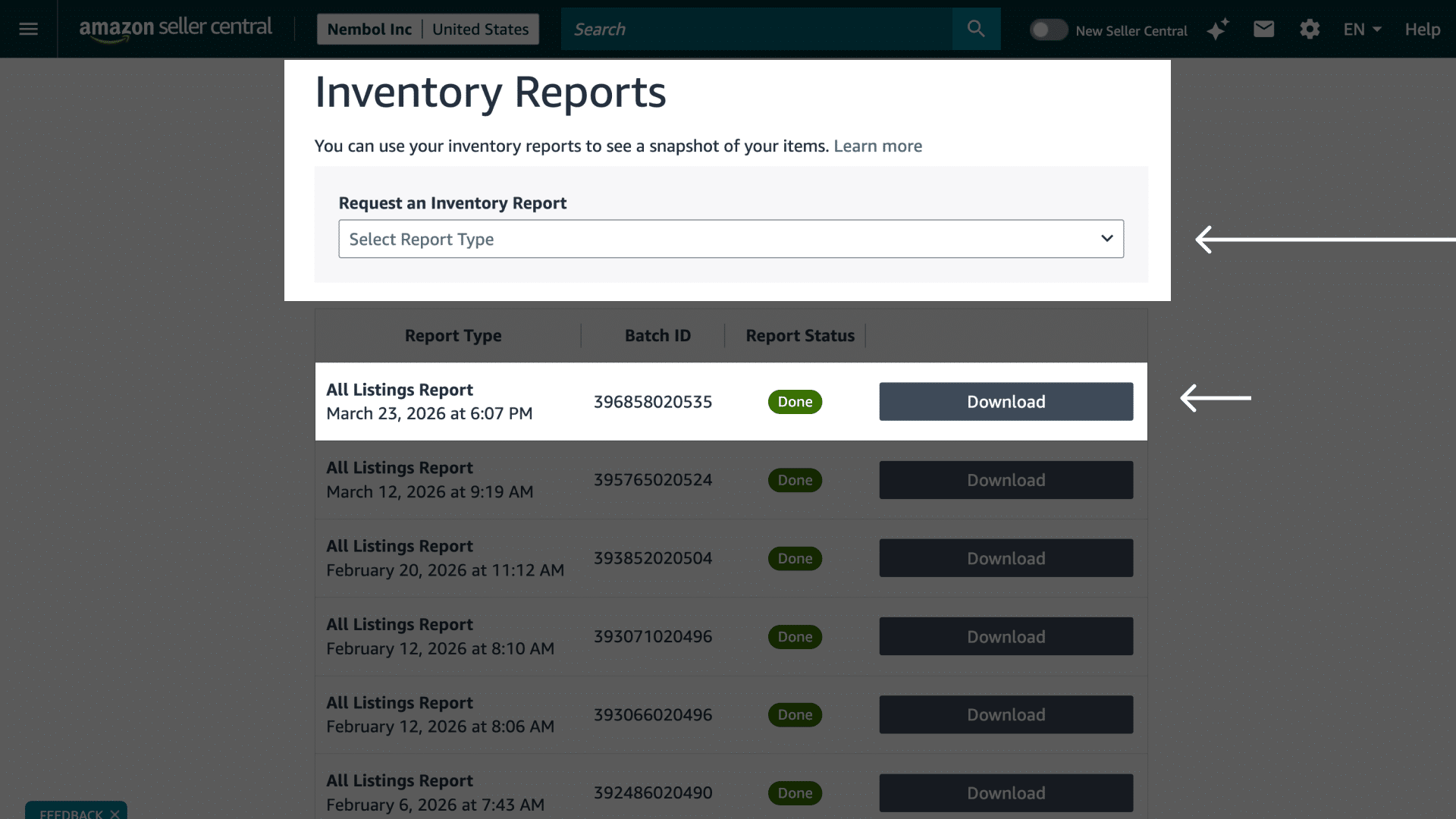
How do I download a flat file of my Amazon listings in full
In addition to order and performance reports, Amazon allows sellers to export a full flat file of their product listings, giving a comprehensive view of their catalog. These flat file exports complement other CSV reports by providing structured data for inventory management, bulk updates, or external analysis.
Flat files can include a variety of reports covering different aspects of your catalog, such as Active Listings, Inventory levels, Amazon-fulfilled Inventory, Category Listings, and Referral Fee Previews. Each report type focuses on specific data points, allowing sellers to select the export that best suits their needs.
To download a full listings flat file:
- Log in to Amazon Seller Central.
- Go to Reports > Inventory Reports.
- Select the desired report type (for example, Active Listings or Inventory Report).
- Configure any relevant parameters.
- Generate the report and download the CSV file.
How to export Amazon data with Nembol via CSV
As one Amazon seller posted on the Amazon Seller Forums:
“I would love to download a flat file of all my listing details so I can make changes more easily and uniformly. I have tried downloading reports for listings but I get only text files that are a big mess.”
While Amazon provides a wide range of reports covering orders, inventory, fees, and performance, managing and consolidating all this data can be challenging. Sellers often face difficulties keeping track of multiple CSV files, navigating different report formats, and ensuring that updates to listings or inventory are applied consistently.
A third-party app like Nembol addresses these challenges by allowing sellers to export all inventory and order data reliably from a single dashboard.
Once sellers export their data through Nembol, they gain access to a comprehensive CSV of their inventory and orders.

Nembol supports two types of CSV edits that can later be synced across multiple sales channels:
Full Edit lets you update the complete product listing, including SKU, price, quantity, title, description, and all other product details. These changes give you full control over your catalog and can be pushed to connected channels.
Light Edit (CSV) is designed for bulk updates of key inventory data such as quantity, price, barcode, and ASIN. It works by matching products via SKU, ensuring fast and accurate updates without touching the rest of the product information.
Note that Amazon may restrict editing certain product details (for example, descriptions) for specific sellers, especially when products are tied to branded or restricted listings.
For sellers already exporting CSV files from Amazon, Nembol simplifies this workflow by bringing inventory and order management into a single dashboard. Beyond Amazon, it also supports multichannel selling, allowing listings to be published across different marketplaces while keeping inventory automatically synchronized.
This helps ensure accurate stock levels, reliable order tracking, and consistent product data across all channels, even when managing multiple marketplaces at the same time.
By centralizing these processes, Nembol gives sellers full visibility and control over their catalog, a structured way to update listings, and a scalable system for handling large product volumes. This reduces manual work, avoids inventory mismatches, and supports business growth with confidence.
Connect your Amazon CSV data to your own Storefront

Once sellers have extracted and organized their Amazon data—orders, listings, inventory, fees, and performance metrics—they often want to use it beyond Amazon. CSV exports and edits are an important part of this workflow, but many sellers also need a way to showcase their products directly to customers, strengthen their brand, and expand into additional sales channels.
Nembol includes Storefront, a branded online store connected directly to your product catalog. Instead of rebuilding your products on a separate ecommerce platform, sellers can turn their existing Amazon inventory into an additional sales channel. Because Storefront uses the same catalog managed in Nembol, product details, pricing, images, and inventory stay synchronized across channels.
With Storefront, sellers can customize their online presence, choose a template, connect their own domain, and create a shopping experience aligned with their brand. They can accept payments through Stripe or PayPal, configure shipping rules, create discount codes, build product bundles, and define their own return policies.
Storefront also helps sellers stay connected with customers beyond marketplaces by integrating WhatsApp, Telegram, and social media profiles, creating more opportunities to engage with buyers directly.
In addition, Nembol allows you to publish your products directly on platforms like Shopify and WooCommerce, if you prefer to use those solutions for your online store instead of the built-in website builder.
This creates a unified system where updates made in one place are reflected everywhere, helping sellers:
- Centralize product visibility: Display Amazon listings on a website or external store so customers can browse outside the marketplace.
- Maintain consistent data: Keep product information—titles, descriptions, prices, images, and inventory—aligned across all connected channels.
- Support multichannel growth: Manage Amazon, your website, Shopify, or WooCommerce as part of a single workflow for broader sales reach.
By connecting all channels to the same catalog managed in Nembol, sellers can increase visibility, reduce manual work, and keep product information accurate everywhere they sell. Every update—whether made via CSV or directly in the platform—is automatically reflected across all connected channels.