
Last update August 1, 2023
What are eBay Business Policies?
When selling on eBay, whenever you create a listing, you need to associate it with a set of business policies, namely:- Payment Policy
- Returns Policy
- Postage Policy
Where do I find my Business Policies?
To use eBay Business Policies, first, you need to opt-in. This is actually necessary only for fresh eBay accounts. Note that if you have a very old eBay account, with thousands of listings, after the re-activation, you will have thousands of policies in your Manager and you will need to clean it up. There is a “Clean up” function within eBay. This is normal, no worries, it is due to the fact that each of your old listings had each of the three policies.How to access eBay Business Policies
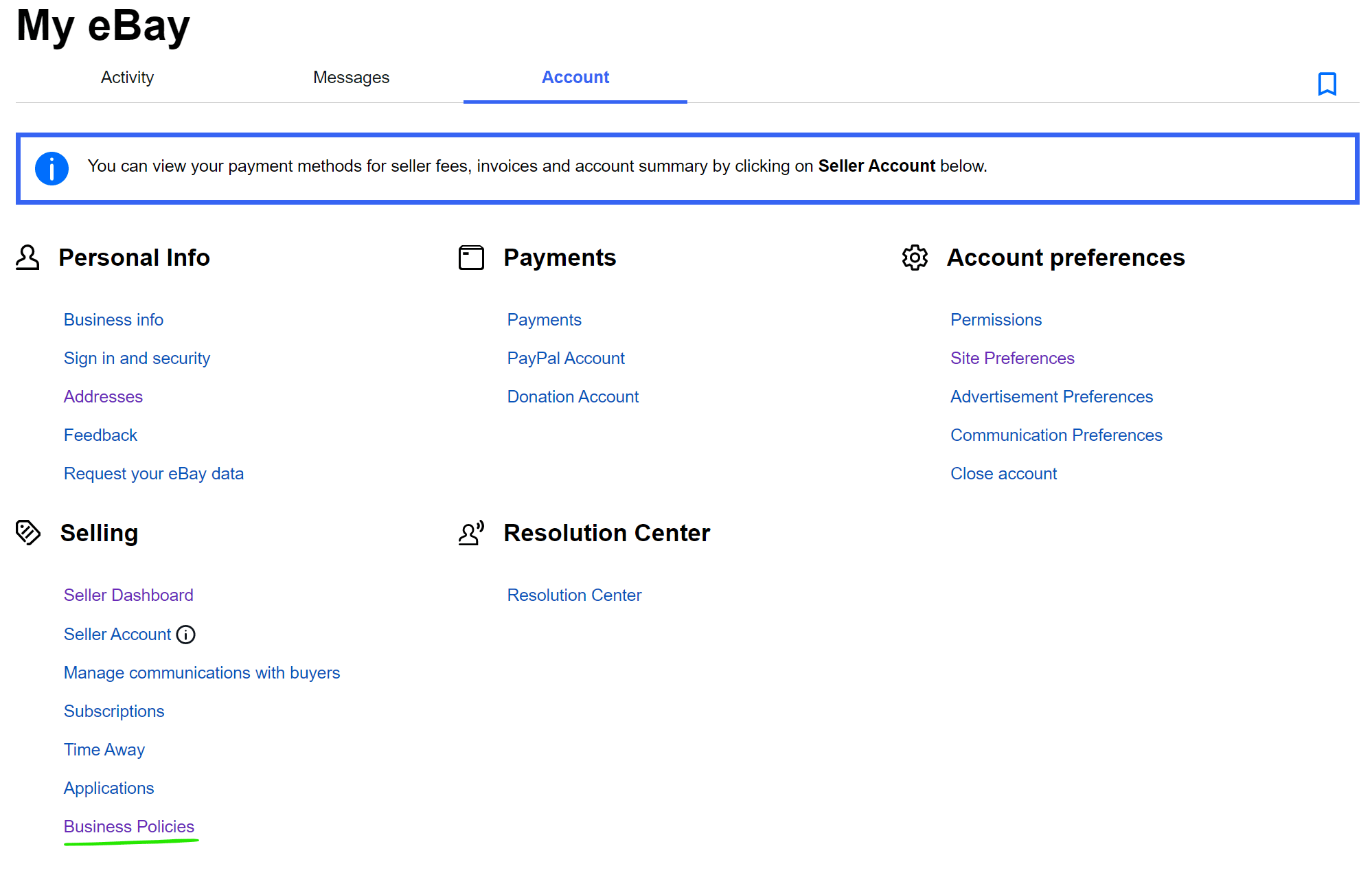
After that, you can create, manage and edit Business Policies in the dedicated section of your eBay account (Picture 1)- Open eBay
- Click on Account Settings (top left corner)
- At the very bottom of the “Selling” block, you will see a link to your Business Policies.
- If you can’t see the link, it means that you haven’t opted-in yet.
Direct link to your business policies
You can easily access and manage your Business Policies from the following link: eBay Business policies direct linkTry Nembol for free: enjoy a 14-day trial
No credit card required
How to create and manage eBay Business Policies
The business policy manager (Picture 2), allows you to have multiple Payment, Returns, and Postage policies, thus you will be able to assign different policies to different types of listings. You can create both Flat and calculated shipping policies. For instance, you may have a “Heavy products” and a “Light products” Postage policy where the latter is cheaper than the former, or a “Customized items” Returns policy, in which return is not accepted.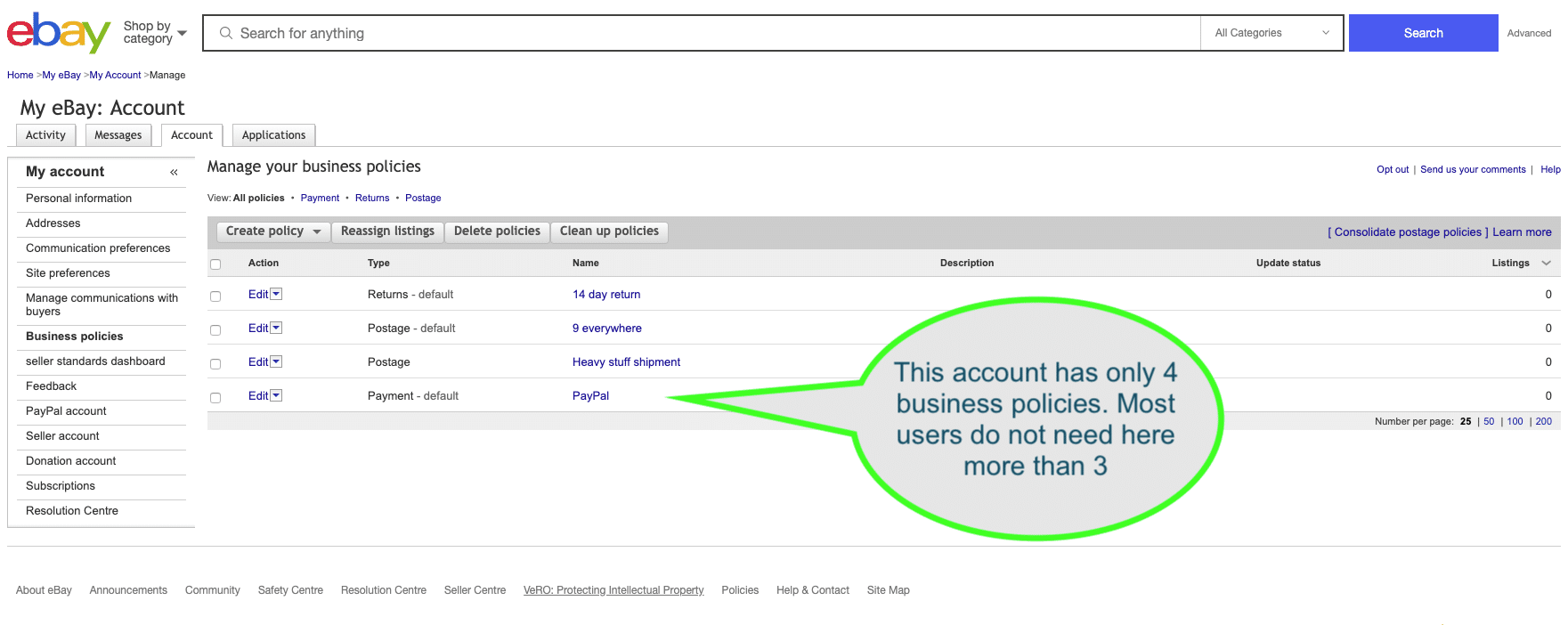
Add or edit Business Policies
Inside eBay business policy manager, eBay sellers can add or edit any policy as they need. For instance, they can have a Payment policy that accepts PayPal, and edit it to accept payments on a different PayPal account, or to fix some issues with their PayPal email address. When they do this, the changes will automatically apply to all new and older listings that use that specific Payment rule (Picture 3). This is a very powerful tool.
How to set up business policies in Nembol
Inside eBay Business Policy manager, you can therefore:- Create new postage, payment, and returns policies and have multiple of each;
- Assign them in bulk to chunks of listings;
- Reassign listings to different rules, both new and old;
- Correct older rules to accommodate changes (e.g. to select a new PayPal payment email).
Errors when bulk-listing with Nembol
All this can be done fairly easily. But sometimes, you still get errors from eBay when listing multiple products with Nembol. This happens especially to new eBay users. Some of those errors are:- Inconsistency between business policies and item location
- You haven’t selected any Business Policies
- You’ve provided an invalid payment policy. ErrorCode: 21917328
- Please enter a valid postal code. Error code: 737
- Your eBay Business Policies are incomplete or outdated 37
How to pick business policies in Nembol
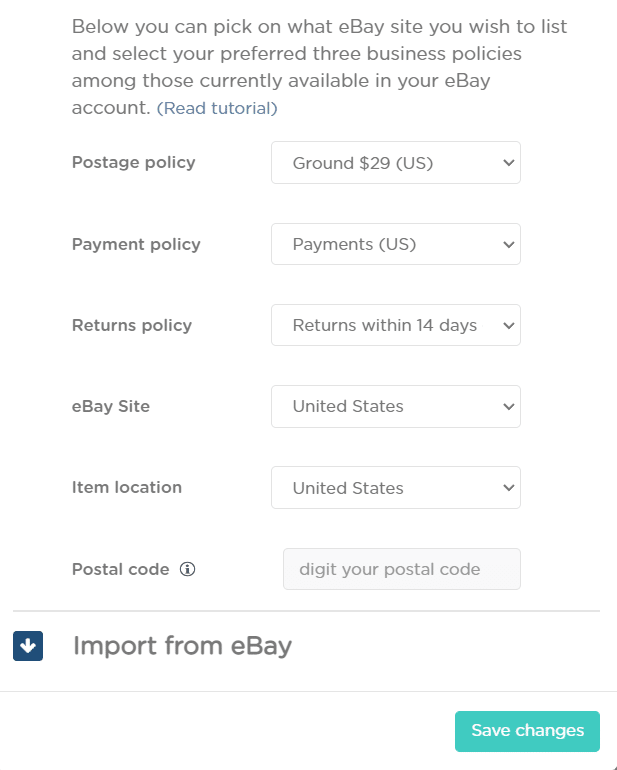
Nembol offers you a dedicated section of the eBay settings to manage your existing Business Policies:
- Open the Channels Tab
- Click on the gear icon next to eBay to open the settings
- Pick your preferred Policies
Please note: if you’re using a calculated shipping policy, remember to type the Postal Code of your inventory. If you’re using a flat-shipping, leave the field blank.
Please Note: If you have too many business policies, you should clean them up in your eBay account by deleting them or editing them, as suggested above.
Sometimes, some accounts have thousands of business policies, and Nembol will be very slow at logging in. We suggest opening your business policy manager in eBay and delete all unneeded policies.
Try Nembol for free: enjoy a 14-day trial
No credit card required