
Last update June 17, 2026
Overview
Maintaining accurate, consistent product listings across multiple sales channels is a critical operational challenge, whether you manage a growing independent store, a high-volume catalog, or multiple client accounts as an agency.
Titles, descriptions, prices, and inventory must remain aligned across every platform at all times. Any inconsistency can affect search visibility, conversion rates, and brand credibility.
Nembol provides a centralized, scalable system to manage and propagate listing edits across all your connected channels. Whether your team prefers to work from a specific channel’s backend or directly within Nembol, every update is distributed in a controlled, reliable, and auditable way, without manual replication across platforms.
What is “Pull content from a channel” in Nembol
The “Pull content from a channel” function allows you to edit listings directly on a supported sales channel and have those changes automatically reflected in Nembol, with no need to re-enter data or manually replicate edits.
At the moment, the “Pull content from a channel” function is available for:
- Shopify — automatic sync
- WooCommerce — automatic sync
- Etsy — manual import via “Import from channels”.
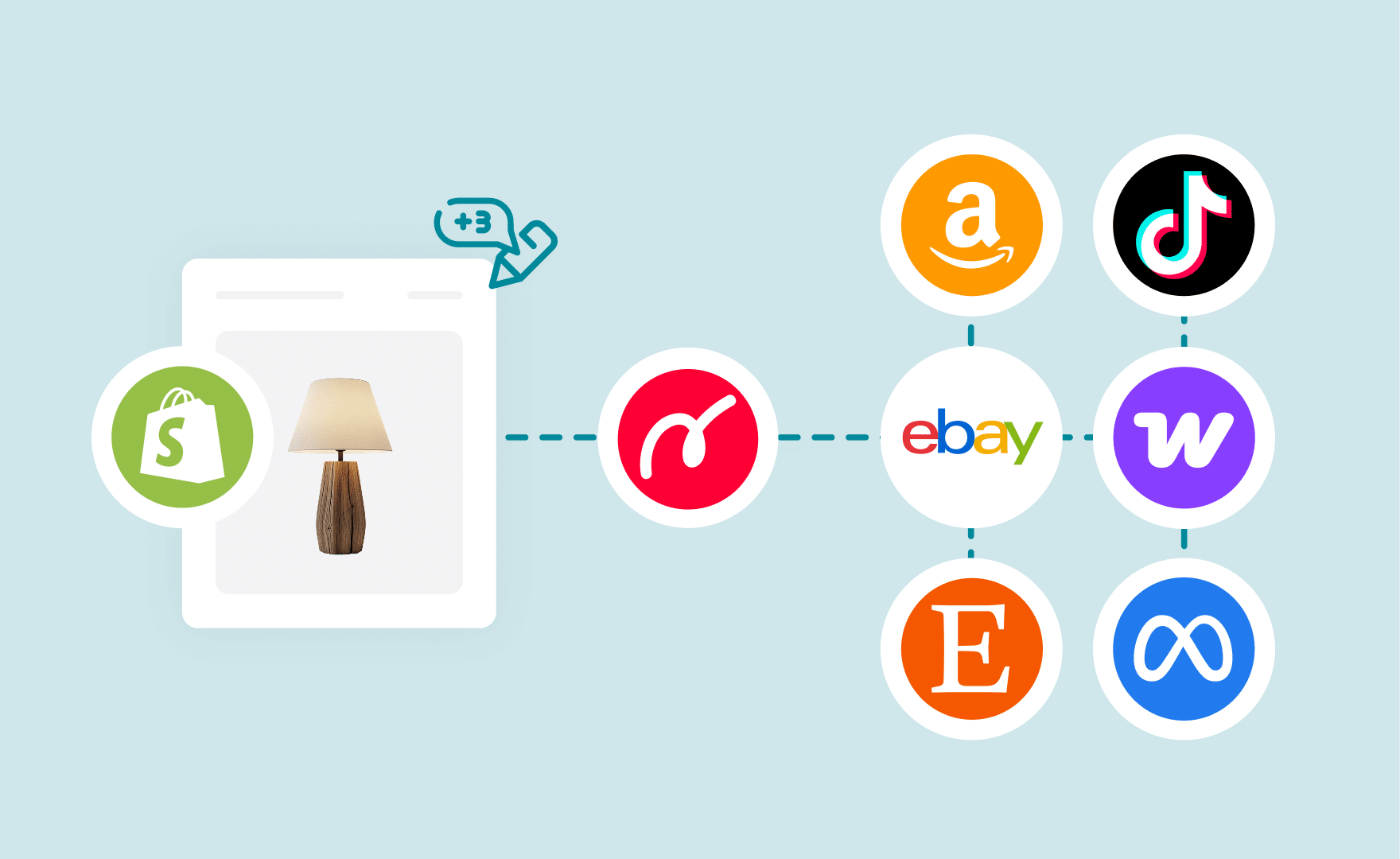
How it works? When you edit a listing on Shopify or WooCommerce, those changes are automatically detected and made visible in Nembol. If you also want to propagate those edits to your other connected channels, simply enable the “Push updates to channels “ toggle for each channel you want to update.
This architecture is particularly valuable for operations managing large catalogs or multiple storefronts, where manual replication across platforms introduces risk of inconsistency and significant time overhead. It also suits agencies that need to delegate catalog editing to channel-specific teams while maintaining centralized visibility in Nembol.
Nembol is currently developing this functionality for additional channels. If you would like to see it extended to a specific platform, feel free to contact us.
How to edit content in Shopify with Nembol
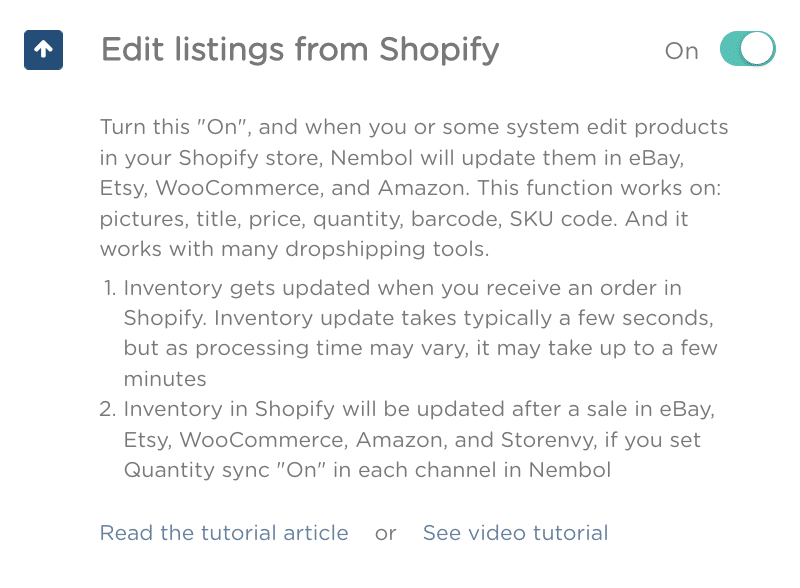
When Shopify is set as the channel that leads stock count and content, any listing edits made in the Shopify backend are automatically pulled into Nembol.
If the “Push updates to channels” toggle is also enabled for other channels, those edits will be distributed across your entire channel mix, making Shopify a reliable starting point for catalog updates at scale.
This setup is particularly suitable for operations where the Shopify catalog is managed by a dedicated team or an external resource, and Nembol acts as the distribution layer toward other channels.
To set Shopify as your source channel:
- Open the Channels Tab in Nembol
- Click Sync settings
- Scroll down and enable “Pull content from a channel” for Shopify.
To propagate edits to other channels, enable “Push updates to channels” for each target channel.
Do you want to take a further step towards your business centralization? Read more about the Shopify Transfer orders function, and collect your multichannel orders into the Shopify backend.
Try Nembol for free: enjoy a 14-day trial
No credit card required
How to edit product details in WooCommerce inside Nembol
The WooCommerce integration works identically to Shopify: edits made in your WooCommerce store are automatically detected and reflected in Nembol, then distributed to other channels based on your sync configuration.
To set WooCommerce as your source channel:
- Open the Channels Tab in Nembol
- Click Sync settings
- Scroll down and enable “Pull content from a channel” for WooCommerce.
To propagate edits to other channels, enable “Push updates to channels” for each target channel.
Your WooCommerce store can be more than a sales channel, it can be your operational center. Find out how WooCommerce Transfer Orders, centralizes your multichannel orders directly into your WooCommerce backend.
How to edit listing in Etsy with Nembol
For merchants who prefer managing listings directly within Etsy, Nembol can use Etsy as the source of content updates.
When this option is enabled, changes made to Etsy listings are imported into Nembol and can be shared with other connected channels.
By combining “Pull content from a channel” with “Push updates to channels”, Etsy can become the central editing environment for your catalog while Nembol handles content distribution.
This approach is particularly suitable for businesses that already rely on Etsy’s interface for day-to-day catalog management but need to keep multiple sales channels synchronized.
Please note that Etsy does not notify Nembol in real time. Because of this limitation, changes made on Etsy may take up to 10 minutes to appear in Nembol and be propagated to other channels.
To set Etsy as your source channel:
- Open the Channels tab in Nembol
- Click Sync settings next to Etsy
- Scroll down and enable “Pull content from a channel” for Etsy.
To propagate edits to other channels, enable “Push updates to channels” for each target channel.
Edit a test listing on Etsy and save your changes.
Once the update is detected, Nembol will import the revised content and synchronize it with the selected channels.
We recommend testing this workflow with a small number of products before applying it to your entire catalog.
If you need Etsy changes to be reflected in Nembol immediately, you can manually import listing updates instead of waiting for the automatic synchronization cycle.
After the import, Nembol can distribute the updated content to any connected channels enabled under “Push updates to channels”.
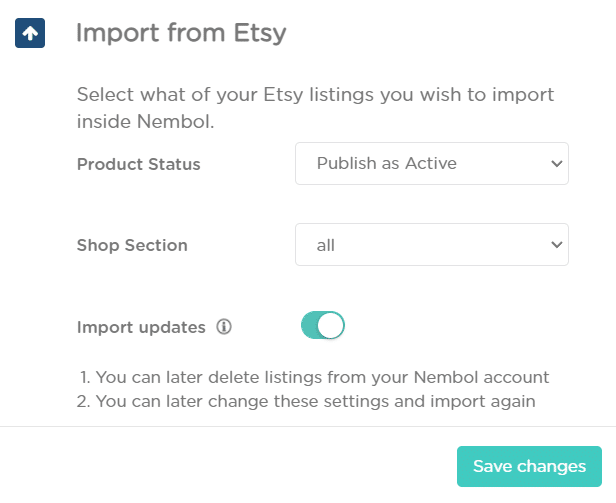
To manually import updates from Etsy:
- Open the Channels tab in Nembol and click on Etsy
- Open Import settings
- Enable “Import updates”
- Go to Sync settings
- Scroll down to “Push updates to channels”
- Select the channels that should receive Etsy updates
- Return to the Channels tab in Nembol
- Click “Import from channel”
- Select Etsy and click “Import”
Nembol will import the Etsy changes and distribute them to all channels opted in for “Push updates to channels”.
This option is particularly useful when immediate synchronization is required across multiple channels.
How to edit a listing on eBay with Nembol
If eBay is part of your multichannel setup, you can use it as the main environment for managing product content while keeping Nembol aligned automatically.
Any changes made to your eBay listings can be imported into Nembol and, if desired, redistributed to your other connected sales channels. This allows eBay to function as a practical entry point for catalog updates without requiring manual duplication across platforms.
When the “Push updates to channels” option is enabled, Nembol will propagate eBay updates to the selected channels, ensuring consistency across your entire catalog.
This workflow is especially useful for sellers who already operate primarily from eBay and want to extend those updates to additional stores and marketplaces through a centralized system.
Please note that eBay, like Etsy, does not notify Nembol in real time. Because of this, changes made on eBay may take up to 10 minutes to appear in Nembol and be distributed to other channels.
To set up eBay as your source channel:
- Open the Channels tab in Nembol
- Click Sync settings next to eBay
- Scroll down to “Pull content from a channel” and enable eBay.
Once the update is detected, Nembol will import the modified content and synchronize it across the selected channels.
It is recommended to test this workflow on a small set of products before applying it to your full catalog.
Discover exclusive content, insider tips by subscribing to our newsletter. It’s quick, easy, and free! Join now and get a 10% discount!
By entering your email address, you accept our Privacy Policy and Terms of Use. Totally free. Unsubscribe at any time.